Hello,
I hope everyone is adjusting to the classroom and this cold weather since coming back from break. With the 100th day of school approaching us in February, I wanted to send you some technology resources that you may be able to use in your classroom. Enjoy! As always, if I can help you in anyway prepare for your class's 100th day, let me know. :)
Books and Poems
http://www.goodreads.com/shelf/show/100th-day-of-school - This is a list of popular 100th day books that you may be able to use.
http://www.canteach.ca/elementary/songspoems80.html - 100 day of school poems.
Songs and Videos
https://www.youtube.com/watch?v=KPdQn2yxNIQ - 100th day of School Song
https://www.youtube.com/watch?v=82P6IRnueog - 1 to 100 counting song
https://www.youtube.com/watch?v=8gTZ0mQ6GYc - Another 1 to 100 counting song
https://www.youtube.com/watch?v=e_I_aTXx6oM&list=PLsb2d7Mx6rMlAj9hOJZMFJdu75vWvWnX_ - 100 days of school 11 minutes recess video
https://www.youtube.com/watch?v=GUHLa1qSy24 - This video shows people in order by age starting at 1 and going all the way to 100. Pretty neat.
Website Activities
http://www.starfall.com/n/holiday/hundredthday/load.htm?f - 100th day of school activity using Starfall.
http://www.sheppardsoftware.com/mathgames/earlymath/BalloonPopOrder2.htm - Pop the balloons in number order from 1-100.
http://www.abcya.com/100_number_grid.htm - Find the missing number on the 100's chart.
http://www.funbrain.com/cgi-bin/gn.cgi?A1=c&A2=100&A3=1&A8=2&A9=1 - Guess the missing number from 1-100. You get 7 guesses.
Promethean Activities
http://www.prometheanplanet.com/en-us/Resources/Item/35774/100th-day-of-school#.VLU6O2Qo5dg - K-3 - Math 100th day activity.
http://www.prometheanplanet.com/en-us/Resources/Item/35773/100-days#.VLVEQGQo5dg - 1-3 - Reading, Writing, and Math activities.
http://www.prometheanplanet.com/en-us/Resources/Item/81705/100th-day-of-school#.VLVF82Qo5dg - K-3 - Reading, Writing, and math activities
http://www.prometheanplanet.com/en-us/common/WebLink.aspx - Web link to interactive 100's chart.
Tuesday, January 13, 2015

Wednesday, December 17, 2014
Christmas Websites and Promethean Activities
Hello Friends,
I wanted to write about and share a few (there are tons) holiday websites and resources you might be able to use over the next 4-5 school days before break. For numerous more Christmas Promethean activities that deal with specific language arts, math, Christmas around the world things, etc. please search on Promethean Planet. Enjoy. :)
Christmas Websites:
http://www.northpole.com/ - Santa and the North Pole
http://www.noradsanta.org/ - Track Santa on Christmas Eve. Also see what is going on at the North Pole.
Christmas Promethean Websites
http://www.prometheanplanet.com/en-us/Resources/Item/31505/christmas-jeopardy#.VJGGrRE3Ndg - Christmas Jeopardy Game
http://www.prometheanplanet.com/en-us/Resources/Item/35268/kindergarten-christmas-activities#.VJGG_hE3Ndg - Kindergarten and First Grade Christmas Flipchart.
http://www.prometheanplanet.com/en-us/Resources/Item/31351/christmas-songs-picture-game#.VJGHbBE3Ndg - Fun Game of guessing Christmas songs based on pictures
Polar Express Promethean and Websites.
http://www.prometheanplanet.com/en-us/Resources/Item/41442/the-polar-express#.VJGB3hE3Ndg - Polar Express promethean activity for before and after book - 1-5
http://www.prometheanplanet.com/en-us/Resources/Item/41364/polar-express-kindergarten#.VJGEZBE3Ndg - Polar Express promethean activity for primary grades - K-1
https://www.youtube.com/watch?v=Dfd8uoaSZ2M - Digital Story of book read by Liam Neeson - NOTE MAKE FULL SCREEN, the author of the link to the book put a inappropriate comment as a description to the story.
I wanted to write about and share a few (there are tons) holiday websites and resources you might be able to use over the next 4-5 school days before break. For numerous more Christmas Promethean activities that deal with specific language arts, math, Christmas around the world things, etc. please search on Promethean Planet. Enjoy. :)
Christmas Websites:
http://www.northpole.com/ - Santa and the North Pole
http://www.noradsanta.org/ - Track Santa on Christmas Eve. Also see what is going on at the North Pole.
Christmas Promethean Websites
http://www.prometheanplanet.com/en-us/Resources/Item/31505/christmas-jeopardy#.VJGGrRE3Ndg - Christmas Jeopardy Game
http://www.prometheanplanet.com/en-us/Resources/Item/35268/kindergarten-christmas-activities#.VJGG_hE3Ndg - Kindergarten and First Grade Christmas Flipchart.
http://www.prometheanplanet.com/en-us/Resources/Item/31351/christmas-songs-picture-game#.VJGHbBE3Ndg - Fun Game of guessing Christmas songs based on pictures
Polar Express Promethean and Websites.
http://www.prometheanplanet.com/en-us/Resources/Item/41442/the-polar-express#.VJGB3hE3Ndg - Polar Express promethean activity for before and after book - 1-5
http://www.prometheanplanet.com/en-us/Resources/Item/41364/polar-express-kindergarten#.VJGEZBE3Ndg - Polar Express promethean activity for primary grades - K-1
https://www.youtube.com/watch?v=Dfd8uoaSZ2M - Digital Story of book read by Liam Neeson - NOTE MAKE FULL SCREEN, the author of the link to the book put a inappropriate comment as a description to the story.
Tuesday, November 25, 2014
Standardized Testing Resources - Repost
As the second semester rolls around, PSSA’s begin to creep closer and closer. Many of you have been preparing students with the skills and strategies that they will need to be successful on these state assessments. Here are some online and technological resources that you may be able to use with your students to strengthen testing skills and strategies. Take a look over them during Christmas Break and think about incorporating some of these resources and activities into weekly lessons, centers, small group instruction etc. Remember, many times for those “bubble” students the difference between a proficient and basic score is not how much content they know going into a standardized test but if they know how to take the test through the repetition and mastery of proper testing strategies.
K–5 - Testing Resources - http://www.internet4classrooms.com/assistance.htm - Please, Please, Please use this resource. Provided from Internet4Classrooms.net, there are practice tests, test questions, timed tests, and more!
3 -5 - Testing Resources - http://www.montroseareasd.k12.pa.us/pssa/ - Great resources with sample testing items for 3, 4, 5 grade reading and math. Also 5th grade writing.
3-5 Testing Resources - http://www.portal.state.pa.us/portal/server.pt/community/state_assessment_system/20965/pennsylvania_system_of_school_assessment_%28pssa%29/1190526 - Believe it or not the PA Dept. of Ed. provides great resources to prepare students to take the PSSA. Find sample tests and even a “Getting Ready for the 2014 State Assessments” PowerPoint and webinar (online video).
1-6 – Math Testing Resources - http://www.eduplace.com/kids/mhm/ - Great testing practice and testing strategy practice for Math.
K-5 - Elementary Language Arts Resources - http://www.internet4classrooms.com/lang_elem_index.htm - This one is a goldmine. Internet4Classrooms.com provides hundreds of English Language Arts activities. Choose from printables, computer resources, and online resources. Provides resources organized by grade level toward the bottom.
K-5 - Elementary Mathematics Resources -http://www.internet4classrooms.com/math_elem_index.htm - Same as above but with math.
3-5 Testing Strategies PowerPoint - http://www.woodland.k12.mo.us/faculty/professional%20development%20committee/Test-Taking%20Strategies-I%20really%20like%20this%20one!!.ppt – Great PowerPoint Presentation on strategies children need to use to be successful while testing.
Thursday, October 30, 2014
Graphite.Org - A TERRIFIC Way to Find Technology Resources for your Classroom! :
Hello Highlands,
I hope everyone survived their classroom Halloween celebrations and is getting ready for the weekend. :) I wanted to write about a great resource that was brought to my attention by Shawn Bennis. The website is Graphite.org. www.graphite.org
The website offers an endless supply of interactive resources, information, and lesson plans that aims on getting teachers to incorporate technology in your classroom everyday. There is so many resources and information that Graphite.org offers that I could write 20 blogs about it. I have decided to focus on one portion of the site that I feel can be extremely helpful to you, and most importantly, your students.
The part of Graphite.org that I want to share with you deals with the Common Core Explorer, which aligns the Common Core curriculum to apps, websites, and lesson plans that utilize technology. If you have any free time, hahahaha, please try to explore the other great features and resources this website offers.
First, however, sign up for the site if you would like. Don't worry, it's free. YOU DO NOT HAVE TO SIGN UP THE SITE to access the Common Core Explorer which I will be explaining more about in detail below.
1.) Access www.graphite.org
2.) Click on "Sign Up" (blue circle)

If you don't want to sign up, remember you can still access the Common Core Explorer. Here's how.
1.) Access the website www.graphite.org
2.) Click on the Common or Explorer Tab
 3.) Select a subject area you would like to find EDTech for. (math or language arts)

4.) Once you select a subject area, you select a grade level.
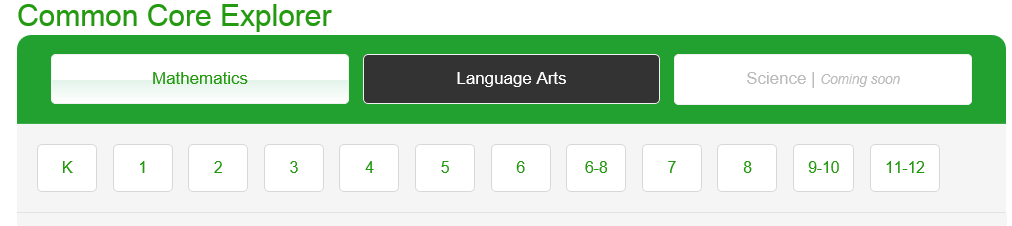
5.) Select a objective strand you would like to find tech resources for.

6.) Click on a green arrow that is beside the standard you are focusing on to access tech resources.


Notice how you can find the type of resource (app, website), the grade level, price (free or paid), and teacher rating/learning rating.
This website is a quick, easy, and great way to find websites, lesson plans, and apps to supplement your classroom instruction and student learning. Hopefully you chose to use this website to help add technology to your classroom on a regular basis to increase student motivation, excitement, and achievement. Explore and Enjoy!!
As always, please let me know if I can help you and your classroom in anyway.
Andrew
I hope everyone survived their classroom Halloween celebrations and is getting ready for the weekend. :) I wanted to write about a great resource that was brought to my attention by Shawn Bennis. The website is Graphite.org. www.graphite.org
The website offers an endless supply of interactive resources, information, and lesson plans that aims on getting teachers to incorporate technology in your classroom everyday. There is so many resources and information that Graphite.org offers that I could write 20 blogs about it. I have decided to focus on one portion of the site that I feel can be extremely helpful to you, and most importantly, your students.
The part of Graphite.org that I want to share with you deals with the Common Core Explorer, which aligns the Common Core curriculum to apps, websites, and lesson plans that utilize technology. If you have any free time, hahahaha, please try to explore the other great features and resources this website offers.
First, however, sign up for the site if you would like. Don't worry, it's free. YOU DO NOT HAVE TO SIGN UP THE SITE to access the Common Core Explorer which I will be explaining more about in detail below.
1.) Access www.graphite.org
2.) Click on "Sign Up" (blue circle)
If you don't want to sign up, remember you can still access the Common Core Explorer. Here's how.
1.) Access the website www.graphite.org
2.) Click on the Common or Explorer Tab
4.) Once you select a subject area, you select a grade level.
5.) Select a objective strand you would like to find tech resources for.
6.) Click on a green arrow that is beside the standard you are focusing on to access tech resources.
Notice how you can find the type of resource (app, website), the grade level, price (free or paid), and teacher rating/learning rating.
This website is a quick, easy, and great way to find websites, lesson plans, and apps to supplement your classroom instruction and student learning. Hopefully you chose to use this website to help add technology to your classroom on a regular basis to increase student motivation, excitement, and achievement. Explore and Enjoy!!
As always, please let me know if I can help you and your classroom in anyway.
Andrew
Tuesday, October 14, 2014
Go Noodle! A Fun Interactive Online Tool to Give Kids Brain Breaks :)
Hello Everyone,
Go Noodle is a GREAT website that shows interactive videos that gives kids "brain breaks" during class. Go Noodle tracks the brain breaks that you take and the progress you make in them to allow you to set goals for your class to achieve. I took this excerpt from the parent letter that you can send home with students once you create an account for your class because I think it explains what Go Noodle is all about very well.
"Go Noodle uses short periods of physical activity –dancing, running, jumping, deep breathing,
and more – to help kids channel their abundant energy. Kids wiggle. Go Noodle gets the wiggles
out, so we can keep on learning!
Go Noodle is great when:
Follow these steps to access Go Noodle, set up an account, and get started this week! :)
1. Go to www.gonoodle.com/
2. Watch the introductory video to find out more about what Go Noodle is all about.
3. Click on "Sign Up for Free"

4. Choose to create a teacher account.
5. Fill in your profile information.
6. Search for your school to link to your account.
7. Once your account is created, check out how Go Noodle works by playing around with the Demo Class.


Go Noodle is a GREAT website that shows interactive videos that gives kids "brain breaks" during class. Go Noodle tracks the brain breaks that you take and the progress you make in them to allow you to set goals for your class to achieve. I took this excerpt from the parent letter that you can send home with students once you create an account for your class because I think it explains what Go Noodle is all about very well.
"Go Noodle uses short periods of physical activity –dancing, running, jumping, deep breathing,
and more – to help kids channel their abundant energy. Kids wiggle. Go Noodle gets the wiggles
out, so we can keep on learning!
Go Noodle is great when:
• we need to focus
•we’re transitioning from one subject to another
•we’re feeling stressed or anxious
• we’ve had a great day and need a reward"Follow these steps to access Go Noodle, set up an account, and get started this week! :)
1. Go to www.gonoodle.com/
2. Watch the introductory video to find out more about what Go Noodle is all about.
3. Click on "Sign Up for Free"
4. Choose to create a teacher account.
5. Fill in your profile information.
6. Search for your school to link to your account.
7. Once your account is created, check out how Go Noodle works by playing around with the Demo Class.
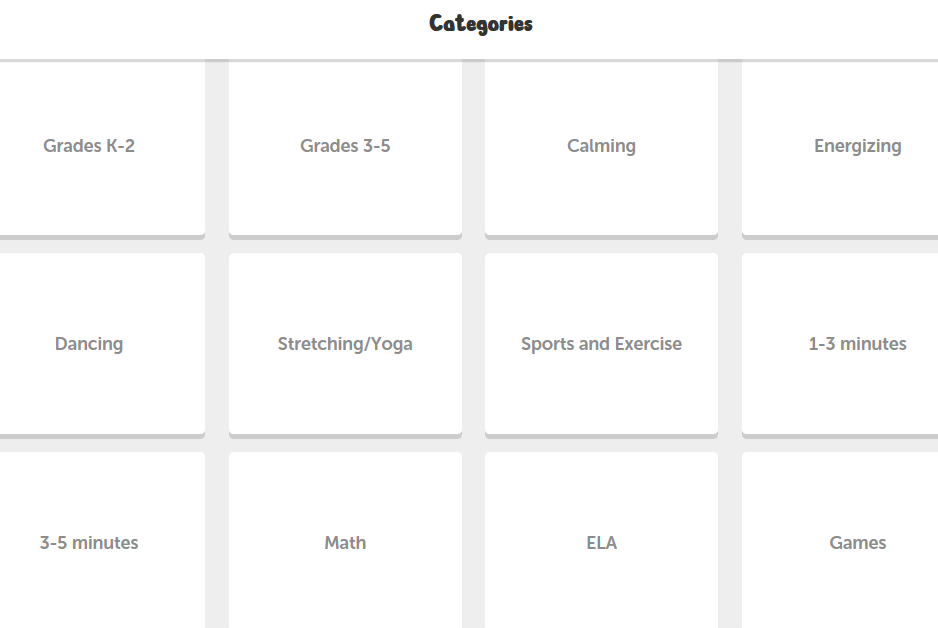
8. Go Noodle breaks up the "Brain Break" activities into categories based on what best fits your class. For example their is a K-2 category, a 3-5 category, calming activities, energizing activities, even math and ELA activities.
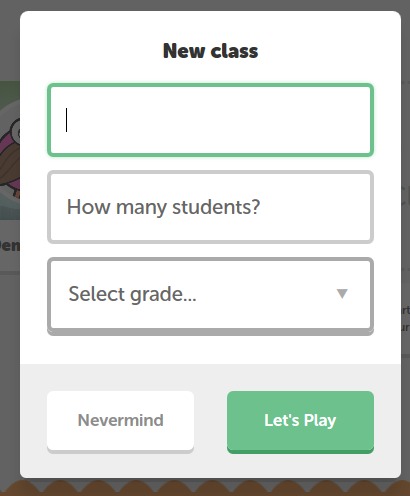
9. Once you get a good feel for Go Noodle and how it works, create your own class.
9. Fill out information that pertains to your class and get started! :)
As always, if you need anything don't hesitate to email me so that I can help you.
Andrew
Tuesday, September 30, 2014
Compass Learning - Logging in and Adding Your Students to Classes

Hello Everyone,
This is my first blog post this school year. I plan on trying to post a few times each month (I know Bill Heasley is really pumped. Don't worry Billy, I will post something about effective basketball dribbling drills sometime before Christmas).
Now that NWEA testing is mostly completed, many teachers have told me they want to get students started on their individual learning paths within the Compass program. I think this is a great idea. Compass allows students to complete educational activities leveled at their individual abilities and supplies you with more data to track student progress, as well as, create additional instruction and remediation. GVE don't forget to check out the computer lab schedule in the mailroom for times to get your kids logged into compass. GVE, Fawn, and Fairmount I know the tablets can be a pain at times (especially for the younger grades) but try to utilize them for Compass in the class at least once a week. Don't let them sit.
As I move from school to school I have heard numerous teachers asking about getting started on Compass. The two questions I have heard asked the most concern gaining login info and adding children to your Compass class roster. So, with that in mind, I have decided to hopefully help answer some of those questions through this post.
Login Info
Your login info should not have changed from last year. The website to access Compass Learning is www.thelearningodyssey.com. Jonathan has kindly and recently added an icon to the desktop screens on the laptops and tablets to give everyone easy access to Compass. If you can't get into your account and your computer is at risk of being smashed, thrown out the window, or run over by a tank ;), please email me and I'll reset your account so that you can get in and started.
Username: firstinitial.lastname (ex. a.lynch)
Password: changeme12 (if you changed this from last year and cannot remember what your password is click on the "Forget Password?" link located beside the green login button. An email should be sent to your Highlands email. If this doesn't work, please email me and I'll reset your account to help you.
School: Grandview = HSD-16
Fawn = HSD-14
Fairmount = HSD-13
Adding Students to your Class Roster
First, after logging in, if you have not done so, you want to remove students from last year's class. Click on "My Classes" and then your class name.

Then, "Select All" of your students by clicking the arrow in the tab shown below.

Next, in the "Action Tab" (shown below) choose "Remove Class"

Now that you have removed students from last year's class(es), you can begin adding students to your class database. Find the Search Box above the list of student names.

Next, type in a student from your class to search for their name in the student database.

Once your student is found, check the box beside their name and Click on the Actions tab. Next, Click on

Next, Choose a class from the list of names provided. Continue process until all of your students are added to your class list. (If a student receives help from a support teacher, it is a great idea to add that student to their class list as well.)

Hopefully, this blog will help some of you when logging in to your Compass account and adding students to your class list.
Remember, if you are having trouble logging in or adding students to your class list, I am just an email away and I will be more than happy to help. I can add new students to the Compass master list as well if you cannot find their name when compiling your class list.
As, always let me know how I can help you in anyway,
Andrew Lynch
Thursday, April 24, 2014
Into the Book - A Great Reading Comprehension Technology Tool - Don't Miss This One! :)
" Into the Book" is a great online tool to help students master reading strategies to aid in furthering their reading comprehension levels. There are eight different reading strategies for students to explore at the site. Summarizing, Inferring, Making Connections, Synthesizing, Schema(Prior Knowledge), Making Connections, Evaluating, Questioning, and Visualizing.
Each skill has a short explanatory video and then an activity that accompanies it. I think that this website is age appropriate for K-5. K, 1, and 2 teachers will have to complete some of the the reading strategy activities with the students using the projector or Promethean Board. K-2 might be able to do some of the activities on their own, for example Visualizing. 3-5 students should be able to do most, if not all, of these activities independently.
I think this site would also be a great small group activity for students to use with the new computer tablets. Below you will find the link to the student section.
http://reading.ecb.org/student/entry.html
There is also a teacher's section that is great. Here is a link to the section. http://reading.ecb.org/teacher/index.html
You will find learning objectives, student and teacher videos, sample lessons, essential questions, printable charts and worksheets, and more for each reading strategy that I listed above! You could plan multiple lessons around each reading strategy throughout the year.
As always let me know if I can help you in anyway.
Enjoy!
Each skill has a short explanatory video and then an activity that accompanies it. I think that this website is age appropriate for K-5. K, 1, and 2 teachers will have to complete some of the the reading strategy activities with the students using the projector or Promethean Board. K-2 might be able to do some of the activities on their own, for example Visualizing. 3-5 students should be able to do most, if not all, of these activities independently.
I think this site would also be a great small group activity for students to use with the new computer tablets. Below you will find the link to the student section.
http://reading.ecb.org/student/entry.html
There is also a teacher's section that is great. Here is a link to the section. http://reading.ecb.org/teacher/index.html
You will find learning objectives, student and teacher videos, sample lessons, essential questions, printable charts and worksheets, and more for each reading strategy that I listed above! You could plan multiple lessons around each reading strategy throughout the year.
As always let me know if I can help you in anyway.
Enjoy!
Subscribe to:
Posts (Atom)